AI Meeting Minutes: From Recording to Complete Notes in Three Steps
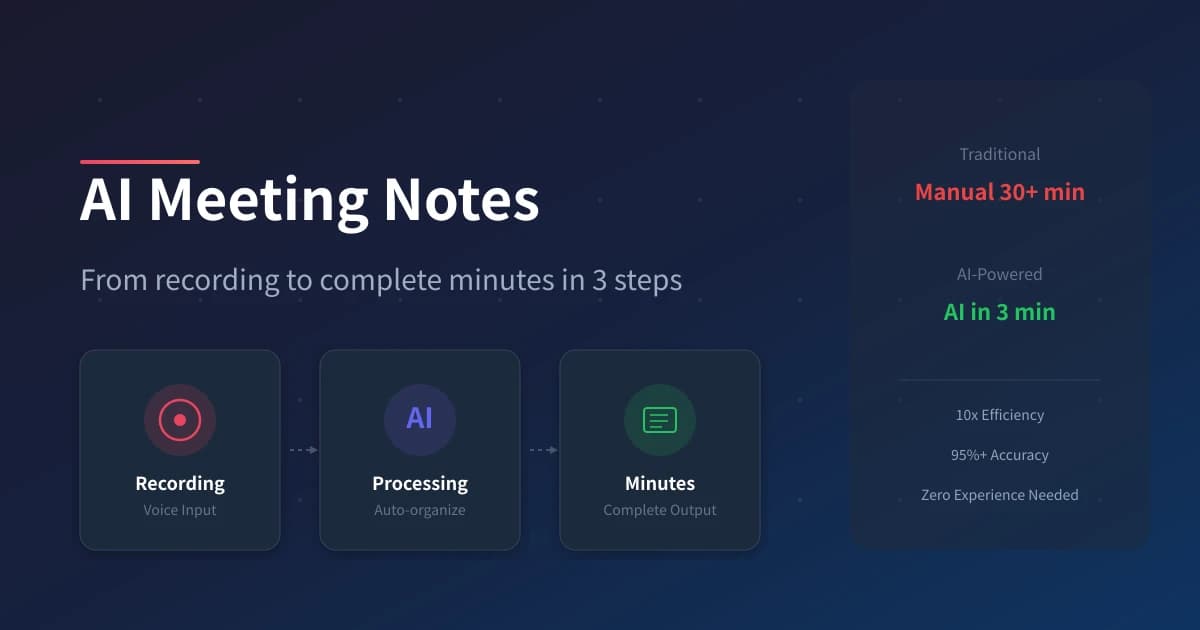
Are you also tired of manually organizing meeting minutes?
After the meeting, everyone goes back to their desks, and you start going through recordings, sorting notes, and piecing together minutes—half an hour or even an hour slips by. What's worse, after all your hard work, your boss just glances at it and says "not complete enough" or "the key points aren't clear."
This is a problem that AI can completely solve for you.
Today's tutorial will teach you how to use AI tools to cut the time it takes to organize meeting minutes from 30 minutes down to 3 minutes—with higher quality and more standardized formatting. Zero experience required.
Why use AI for meeting minutes?
First, let's talk about why it's worth the 3 minutes it takes to read this tutorial:
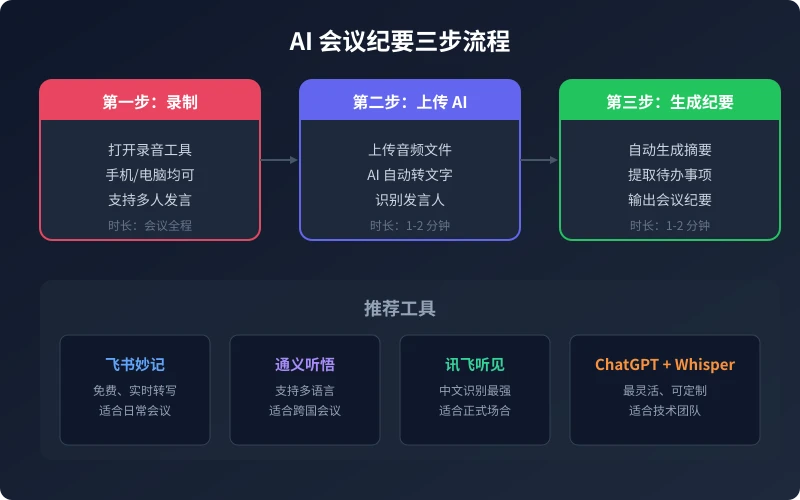
Pain points of traditional methods
- Incomplete recording: While you're taking notes during the meeting, you might miss key information.
- Low efficiency: A 30-minute meeting can take 40 minutes to organize minutes.
- Inconsistent formatting: Everyone writes minutes in a different format, making it painful to search later.
- Subjective bias: What you think is the "key point" may not actually be the real key point.
Advantages of the AI approach
- Comprehensive and accurate: Word-for-word transcription, no information is missed.
- Lightning fast: Get the entire minutes done in 3 minutes, boosting efficiency 10 times.
- Uniform formatting: Automatically generates a standard template, making it easy to search and archive later.
- Intelligent extraction: Automatically identifies action items, decisions, and key discussion points.
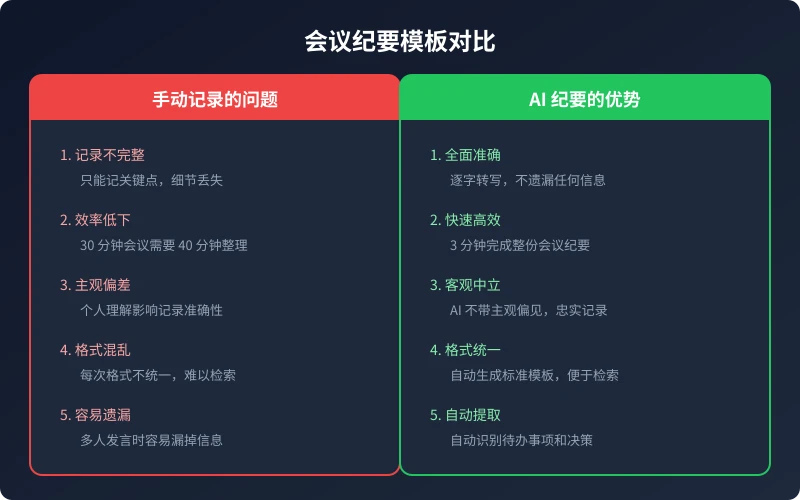
Step 1: Choose a recording tool and complete the recording
Before or during the meeting, open your recording tool and start recording. There's no technical difficulty here, but a few details to keep in mind:
Record on your phone
The simplest method. Use the built-in Voice Memos on iPhone or the voice recorder on Android phones. Place the phone in the middle of the table to ensure everyone's voice is captured.
Record on your computer
For online meetings, most meeting software has built-in recording features. Lark (Feishu), Tencent Meeting, and DingTalk all support cloud recording, so you can download the audio file directly after the meeting.
Recording tips
- Try to place your phone or computer close to the speakers.
- Avoid recording near air conditioner vents or in noisy environments.
- For online meetings, prioritize using the meeting software's built-in recording for better audio quality.
- Check the file immediately after recording to make sure it's complete.
Step 2: Upload to an AI tool for transcription
After the meeting, upload the recording file to an AI tool and let it automatically convert the audio to text. This is the most critical step, and choosing the right tool matters.
Tool 1: Feishu Minutes (recommended for beginners)
Best for: Daily team meetings, project weekly meetings
Advantages: Free, real-time transcription, automatic speaker identification
Steps:
- Open Feishu and go to the "Minutes" feature.
- Click "Import Audio" and upload your recording file.
- Wait 1-2 minutes for the AI to complete the transcription.
- After transcription is done, you can edit online and export.
Tool 2: Tongyi Tingwu (good for multilingual)
Best for: Cross-border meetings, multilingual scenarios
Advantages: Supports Chinese, English, Japanese, Korean, and more; strong translation capabilities
Steps:
- Visit the Tongyi Tingwu website or open the app.
- Register an account, then click "Upload Audio."
- Select your recording file and click "Start Transcription."
- After completion, export as Word or PDF.
Tool 3: iFlytek Hearing (best Chinese recognition)
Best for: Formal business meetings, Chinese-dominated scenarios
Advantages: Highest accuracy for Chinese speech recognition, supports dialects
Steps:
- Download the iFlytek Hearing app or visit the web version.
- Upload the audio file.
- Select the language type (Mandarin/Dialect).
- Wait for transcription to finish, then download the result.
Tool 4: ChatGPT + Whisper (most flexible)
Best for: Technical teams, need for deep customization
Advantages: Fully customizable output format, can be integrated into workflows
Steps:
- First use Whisper (OpenAI's open-source tool) to convert audio to text.
- Then send the transcribed text to ChatGPT.
- Use a prompt to have it generate structured meeting minutes.
Step 3: Let AI generate structured meeting minutes
Once you have the transcribed text, send it to an AI (ChatGPT, Tongyi Qianwen, Wenxin Yiyan, etc.) and have it generate standard-format meeting minutes.
Universal prompt template
Copy the prompt below directly and paste your transcribed text into it:
"You are a professional meeting minutes assistant. Based on the following meeting transcript, generate a structured set of meeting minutes that includes the following sections:
- Basic meeting information: Time, attendees, topic
- Key discussion points: Listed in order of importance
- Decisions reached: Specific conclusions made during the meeting
- Action items: Who is responsible for what, and deadlines
- Next steps: Direction for follow-up actions
Requirements: concise and professional language, highlight key points, remove colloquial expressions."
Real example output
Suppose you had a product requirements review meeting. The AI-generated minutes would look something like this:
Basic meeting information
Time: July 26, 2026, 14:00-15:30
Attendees: Zhang San (Product), Li Si (Development), Wang Wu (Design), Zhao Liu (QA)
Topic: V2.5 Requirements Review
Key discussion points
1. Add a user points system supporting point redemption and tier upgrades.
2. Optimize the search function by adding filter criteria and sorting options.
3. Refactor the notification module to support multi-channel push.
Decisions reached
1. Points system is the highest priority; development to be completed by end of July.
2. Search optimization to be included in V2.5, assigned to Li Si.
3. Notification module refactoring postponed to V2.6.
Action items
- Zhang San: Output the PRD (Product Requirements Document) for the points system by July 28.
- Li Si: Complete the technical proposal for search optimization by July 30.
- Wang Wu: Complete the UI design for the points system by August 1.
- Zhao Liu: Prepare test cases; start testing immediately after development is complete.
Advanced tips: Making AI minutes even better
Tip 1: Create a team template
If you frequently have the same type of meetings (e.g., weekly meetings, requirements reviews, retrospectives), have the AI create a fixed template. Each time you just paste the transcript, and the AI will output in the template format.
Tip 2: Automatically extract action items
Add a line to your prompt like "Please list all action items separately, including the responsible person and deadline." The AI will automatically organize them into a checklist format for easy follow-up.
Tip 3: Generate an executive summary
If your boss only wants to see conclusions and not the full text, ask the AI to generate an additional "executive summary" of no more than 200 words, containing only the most important decisions and actions.
Tip 4: Refine through multi-turn conversation
If you're not satisfied with the first version of the minutes, you can continue to ask the AI to adjust. For example: "Condense the discussion points in the second section further," "Add priority labels to action items," or "Rewrite in a more formal tone."
Frequently asked questions
Can AI handle poor audio quality?
Current AI speech recognition technology is already very strong and can handle general background noise. However, if the recording is too unclear (e.g., the phone is too far away), accuracy will drop. It's recommended to place the device close to the speaker when recording.
Does it support dialects?
iFlytek Hearing supports multiple dialects including Sichuanese, Cantonese, Shanghainese, etc. Feishu Minutes and Tongyi Tingwu mainly support Mandarin; for dialect scenarios, iFlytek is recommended.
Can it be used for confidential meetings?
Recording data from Feishu Minutes and Tencent Meeting is stored on the enterprise cloud with access controls. For highly confidential meetings, it's recommended to use local recording + a locally deployed Whisper tool, so data is not uploaded to external servers.
Can the generated minutes be edited?
Of course. The AI generates a draft; you can modify, add, or delete content based on the actual situation. The AI saves you the time of starting from scratch, not replaces your judgment.
Summary
Using AI for meeting minutes boils down to three steps:
- Record: Use your phone or computer to record the meeting.
- Transcribe: Upload to tools like Feishu Minutes, Tongyi Tingwu, etc.
- Generate: Send the transcript to ChatGPT and use a prompt to produce structured minutes.
The entire process takes no more than 5 minutes, but saves you half an hour of organizing time each day. Over a month, that's over ten hours of efficiency gain.
Next time your meeting ends, give this method a try. You'll love it after just one use.
相关文章
AI 帮你写简历:从零到专业,五步搞定求职利器
不管你是应届生还是职场转行,AI 都能帮你把简历从"凑合能用"变成"眼前一亮"。本文用五个步骤,手把手教你用 AI 生成、修改、优化出一份真正能拿面试的专业简历。
效率工具AI 帮你整理笔记:收集、归档、回顾,五步建立个人知识系统
笔记越来越乱,写了等于没写?本文教你用 AI 把会议录音、阅读摘录、灵感碎片一键整理成结构化知识库,五步建立从收集到回顾的完整笔记系统。
效率工具AI 帮你做副业规划:找到适合你的第二收入来源
想用副业增加收入,却不知道从哪里开始?AI 能帮你分析技能、匹配方向、制定计划、跟踪执行。零基础也能在一个月内找到适合自己的副业路线。
评论功能暂未开放,敬请期待